There is no debate: desktop Excel remains the powerhouse for serious spreadsheet work. When you need complex formulas, pivot table building, macros, large datasets, and detailed chart customization, the Windows or Mac version is unbeatable. But after using Excel mobile daily for quick field tasks, I’ve found a handful of jobs where my smartphone does it better. In this post, I’ll break down the scenarios where Excel on mobile outshines desktop Excel, plus the limits you need to keep in mind.
Why desktop Excel is still the main tool
Desktop Excel was built for deep spreadsheet creation and analysis. It supports VBA macros, full pivot table editing, advanced data models, dynamic array spill logic, and huge tables with tens of thousands of rows. The large monitor, mouse and keyboard make sorting, auditing formulas and formatting big reports fast and precise.
If I need to build a financial model, clean a large dataset, or design a dashboard, I always open Excel on my PC. Mobile Excel simply cannot match that depth.
The tasks where my phone’s Excel app works better
1. Capture tables instantly with Data from Picture
This is my favorite mobile-only superpower. Excel mobile lets you snap a photo of a printed table, receipt, or handwritten list and automatically convert it into editable spreadsheet cells. On desktop, you have to manually type or use slower workaround tools.
Standing in a store, reviewing printed reports, or collecting inventory counts? Just take a picture, and the data lands straight into your sheet. It saves massive amounts of manual data entry. The recognition handles numbers and simple text reliably for most everyday tables.
2. Voice input for fast on-the-go data entry
Mobile Excel integrates tightly with your phone’s built-in voice dictation. While you’re walking, driving (safely parked), or in a meeting, you can speak values directly into cells without typing.
Desktop Excel has dictation too, but it feels clunky by comparison. On mobile, switching between speaking numbers and notes into spreadsheet cells is seamless for quick logging, like expense entries or field survey results.
3. True anywhere access, offline edits and instant cloud sync
Your phone stays with you everywhere. When a colleague texts you to check a sales number or update a cell while you’re away from your desk, mobile Excel lets you open the OneDrive sheet instantly.
The mobile app also supports offline editing. You can modify your spreadsheet without Wi‑Fi or cellular data; all changes automatically sync back to the cloud once connectivity returns. Desktop Excel can work offline, but you need to remember to open and cache the file ahead of time.
4. Touch and ink annotation for quick reviews
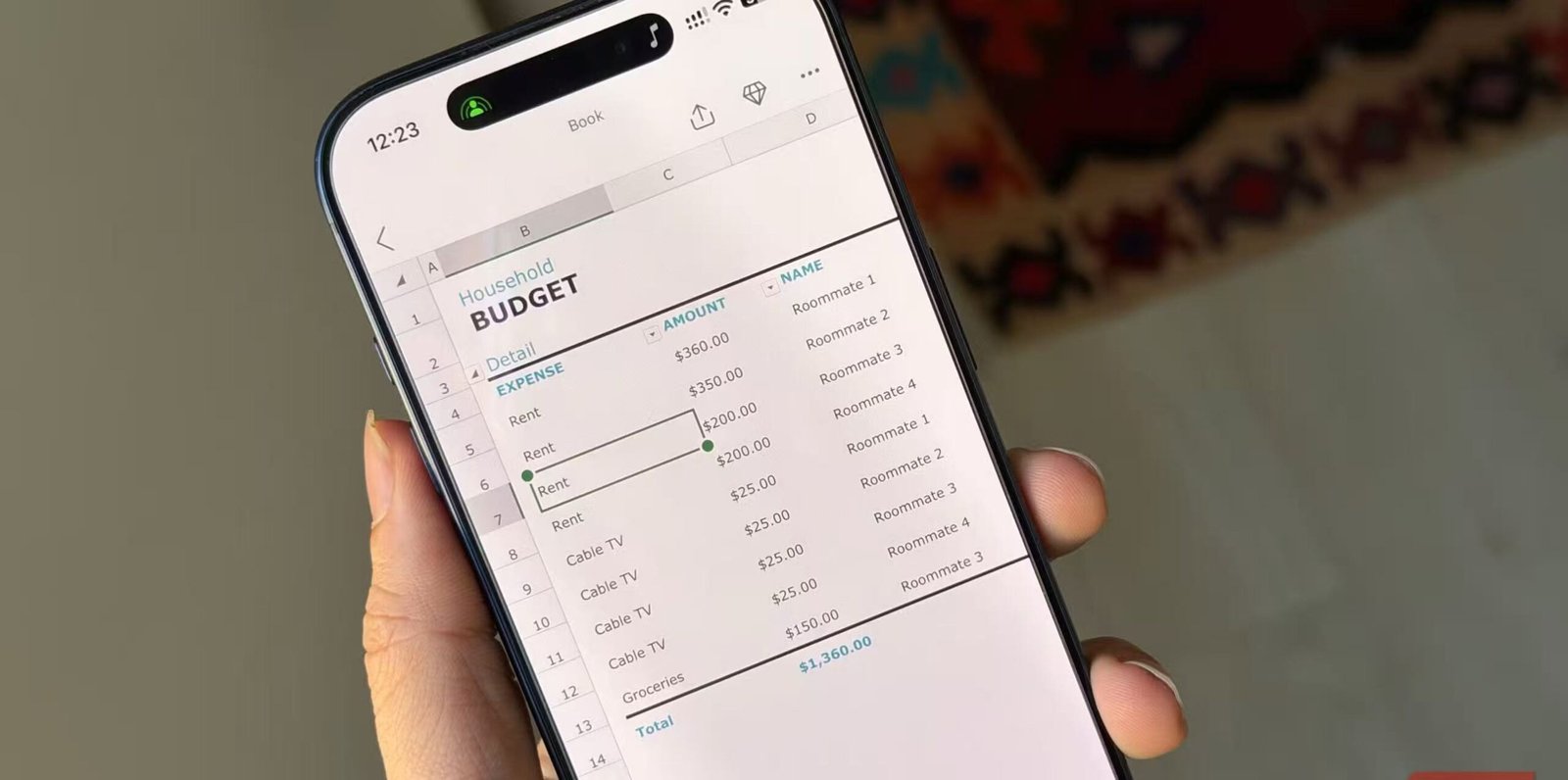
The mobile Excel app shines for lightweight markup. You can use your finger or stylus to draw, circle numbers, highlight cells, or scribble notes directly on the spreadsheet.
This is perfect for quick reviews: mark up budget numbers while in a meeting and share the annotated sheet back to your team. Desktop has ink tools too, but it’s not as natural for fast casual markup as touch on a phone or tablet.
5. Card view for easy single-row data updates
Mobile Excel’s Card View transforms table rows into simple, scrollable cards. Instead of pinching and zooming across tiny spreadsheet cells, you edit one record at a time. This is ideal for databases, inventory lists, customer logs and survey responses.
On desktop, you edit in the grid, which becomes awkward when you only need to update one row from a table with many columns. Card View is purpose-built for this single-record workflow and exclusive to mobile.
What mobile Excel cannot handle
These strengths come with clear tradeoffs. The phone app struggles with heavy spreadsheet work:
- No macro/VBA support
- Cannot create pivot tables (only view and refresh existing ones)
- Limited advanced formula support for complex functions like LAMBDA
- Poor performance on very large datasets
- Restricted chart customization
- Small screen makes complex layout and formula auditing difficult
My practical hybrid workflow
I split my spreadsheet work between desktop and mobile to get the best of both worlds:
- Desktop: Build the workbook, create pivot tables, write complex formulas, design charts and dashboards.
- Mobile: Capture printed tables via camera, log new data with voice input, review and annotate sheets, update individual records with Card View.
This setup saves me hours. I do all the heavy lifting on my PC, then use my phone as a portable data collection and quick-review tool.
Final thoughts
Desktop Excel will always be the primary tool for building and analyzing complex spreadsheets. But mobile Excel is far more than just a “view-only” companion app. Its camera data capture, voice entry, touch ink markup, offline sync and Card View make it uniquely efficient for on-location data collection and quick edits.
If you still treat Excel mobile as a simple file viewer, test these features. It’s not a desktop replacement, but it is a surprisingly capable tool for specific real-world jobs.